

A data-focused infrastructure engineering team
Sawa Engineering uses BIM information to support planning and transparent project decisions. The team needed a fast way to evaluate quantities and costs across several design alternatives.
Reliable quantities under a tight planning window
The team needed to segment reinforced-concrete elements by floor and construction section, connect results to cost planning, and compare three design variants without a slow handoff between specialist model tools and spreadsheet analysis.
Decision-makers needed transparent quantities across the alternatives. Reusing the team's Excel skills would keep training effort low and reduce the number of tools involved in each iteration.
Connect IFC Copilot with an Excel-centered workflow
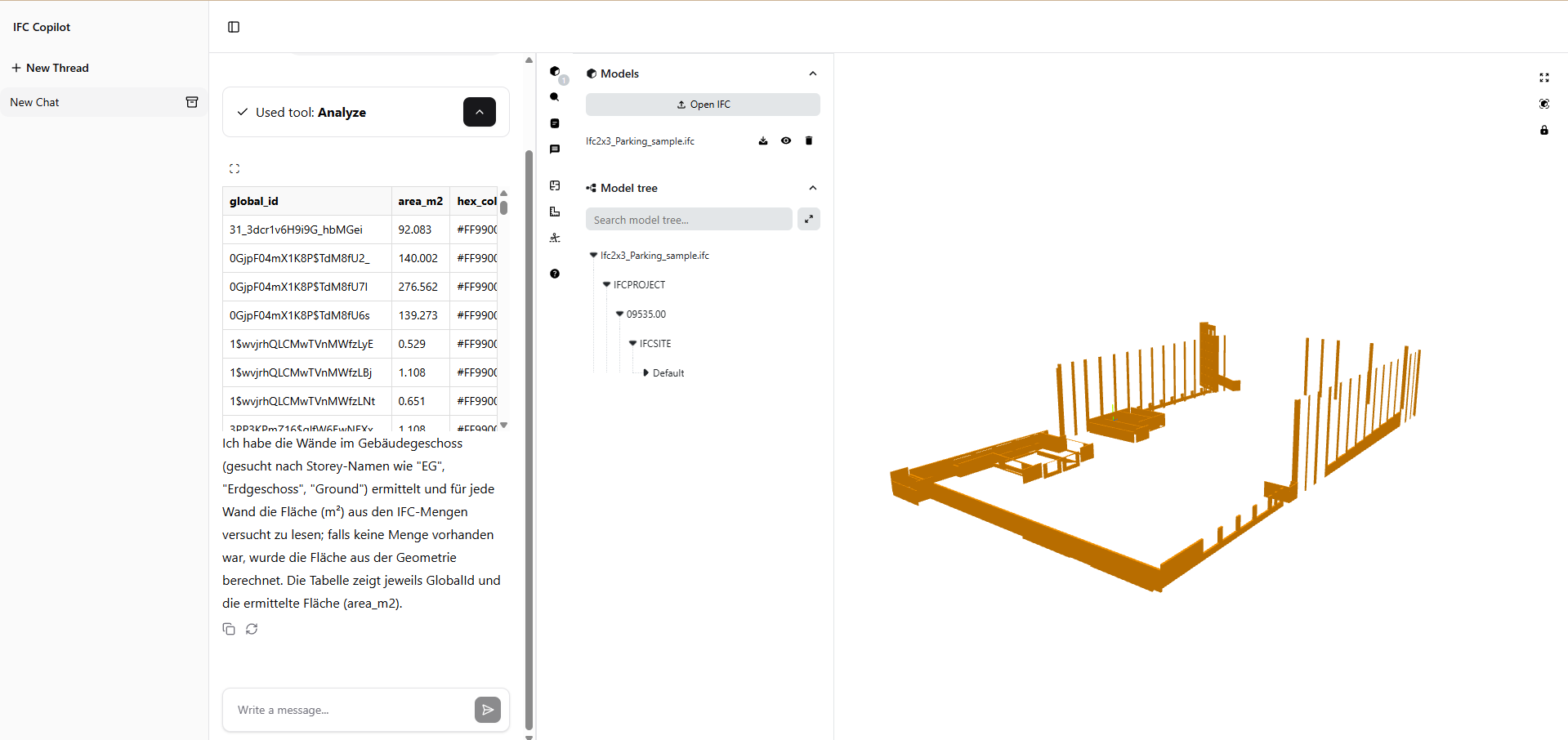
Flinker Copilot and the Excel IFC Viewer connected model parameters with a familiar analysis environment. Quantity takeoff, cost mapping, and model checks could be reviewed together with visual model context.
Connect the model parameters to Excel using Flinker Copilot and IFC Viewer.
Apply rule-based queries to group reinforced-concrete elements by floor and construction section.
Use Excel filters and formulas for cost mapping and comparison.
Check the selected quantities against their corresponding objects in the model.
Resolve parameter issues before comparing alternatives
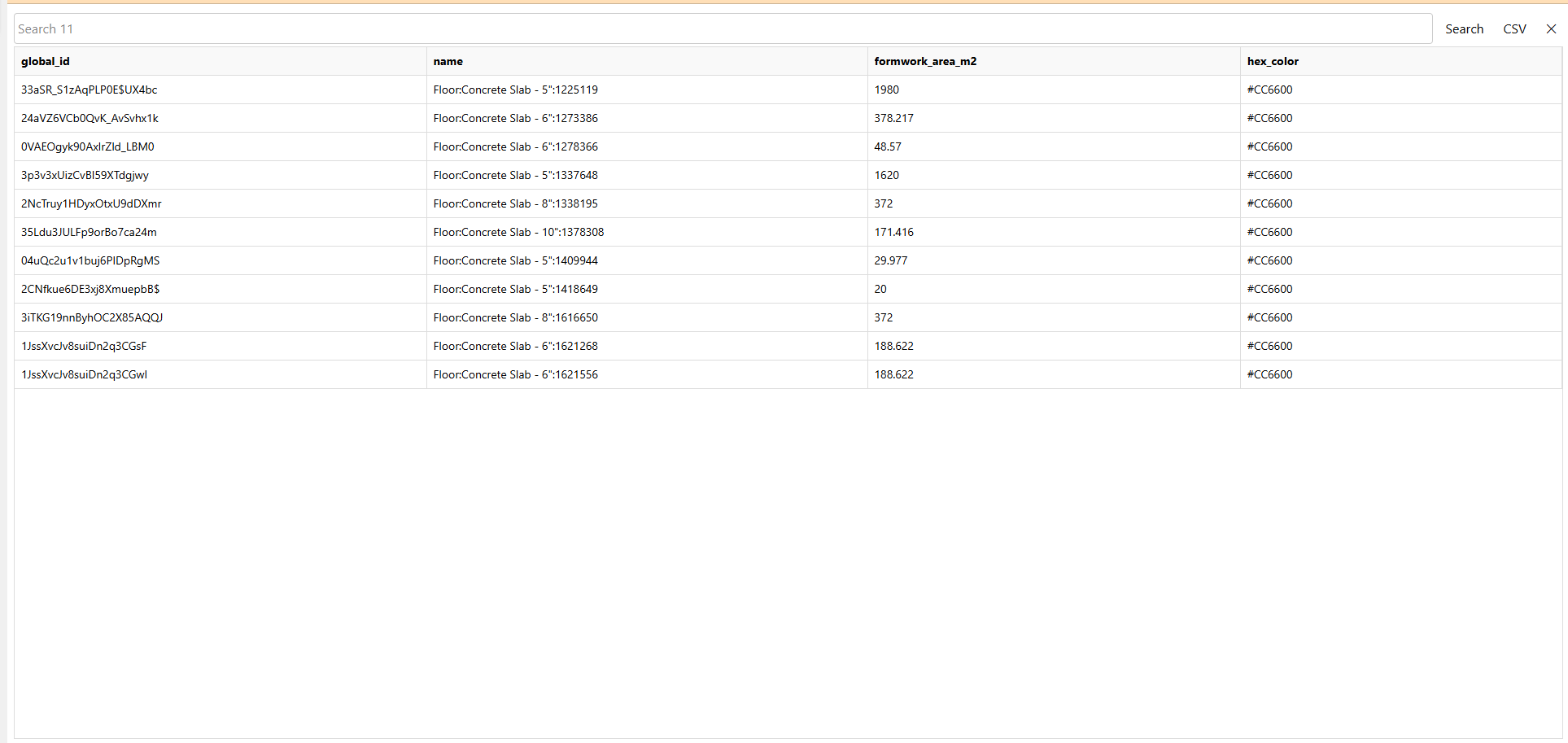
The team identified inconsistent model parameters during the analysis, including basement walls assigned to the ground floor. Finding these issues early allowed the team to correct the underlying classification and continue the comparison with a clearer basis.
The screenshots use a sample IFC to demonstrate the workflow without exposing the customer's project data. They illustrate the analysis method rather than document the confidential project model.
Compare quantities, costs, and planning criteria in Excel
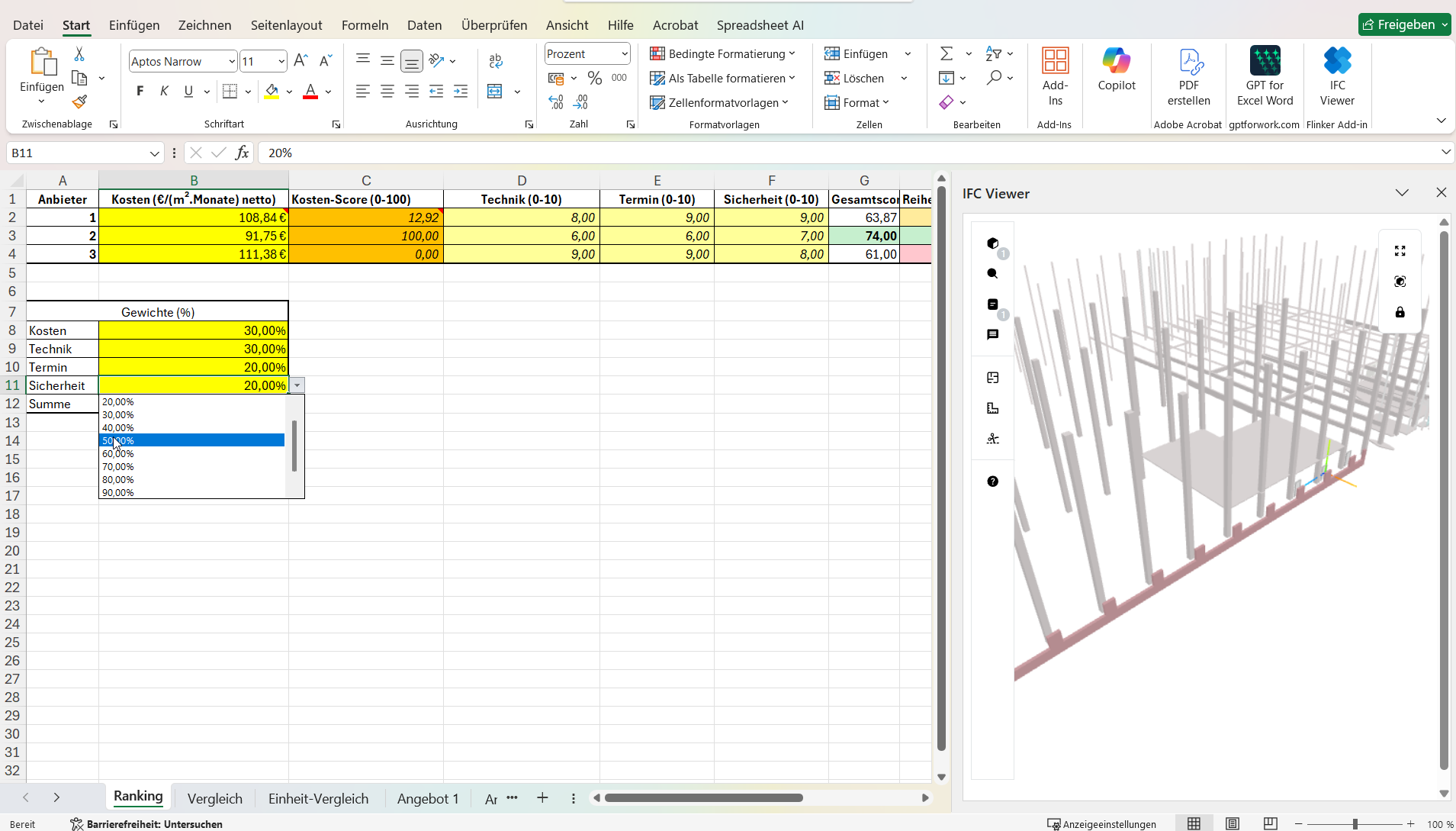
Excel provided the working environment for filters, formulas, and cost mapping. The sample workbook places a weighted comparison of cost, technical, schedule, and safety criteria beside the IFC model view.
Keeping the comparison and geometry together helps reviewers investigate which elements contribute to the result and prepare the handover to schedule and budget planning.
Three alternatives evaluated in three weeks
Sawa reports that the team evaluated three alternatives within three weeks and made comparable quantities available for the decision. The customer also reported faster iteration than its previous methods with a limited learning curve.
The selected alternative was associated with a shell-construction plan of approximately seven months, compared with roughly ten months in the prior plan.
Extend analysis to more disciplines
The next planned step is to include MEP and facade models and connect cost information to Power BI for live reporting.